How to make SRT subtitles from a video
Make SRT subtitles from a video automatically, then check them for timing and reading speed before you upload them to YouTube, social media or a video player.
Last updated 29 October 2026
An SRT file is the most widely used subtitle format: a plain text file with numbered cues, each with a start time, an end time and one or two lines of text. YouTube, Facebook, LinkedIn, Vimeo and almost every video editor and player accept it. This guide shows how to make one from a video automatically, and what to check before you publish it.
What an SRT file looks like
1
00:00:01,200 --> 00:00:03,900
Say it once.

2
00:00:04,100 --> 00:00:06,800
Use it everywhere.
Each cue has a number, the times in hours:minutes:seconds,milliseconds, and the text. A blank line separates the
cues. WebVTT (.vtt) is almost the same, with a WEBVTT header and a dot instead of the comma in the times; it
is the format web players prefer.
Make the subtitles
- Upload the video to Muvero. MP4, MOV, MKV, WebM or AVI, up to 4 GB. The language is detected for you; it works in English, Serbian, Croatian and 16 more languages.
- Wait for the transcript. Muvero transcribes the speech and builds the cues from the words and their exact timing, so each cue appears when its first word is spoken.
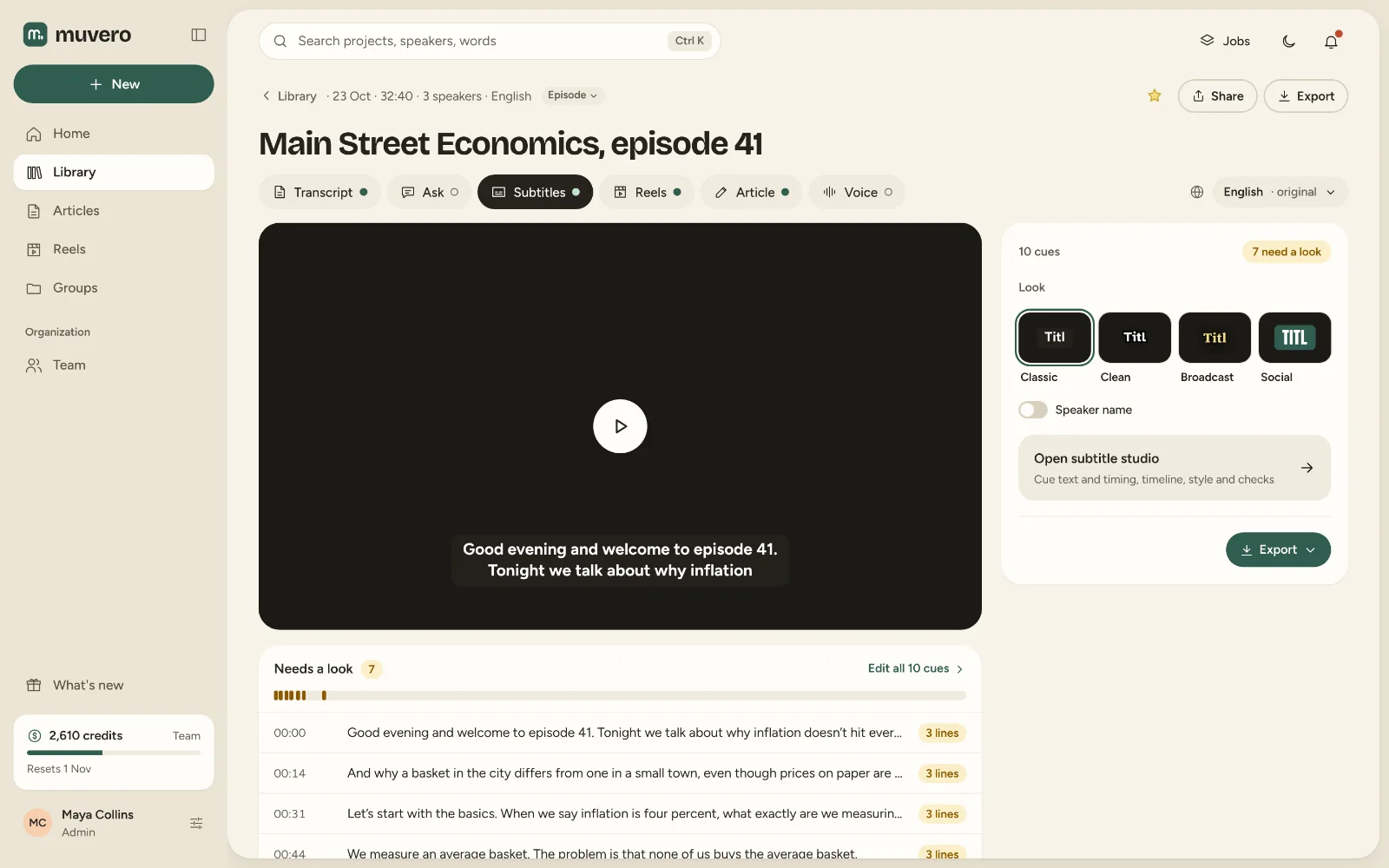
- Open Subtitles. You see every cue on the video, with its length, its lines and its reading speed.
Check them before you publish
Automatic subtitles get the timing right; reading comfort is worth a minute of your time.
- Reading speed. A common guideline is at most about 17 to 20 characters per second. Cues above it are marked, so viewers are not left mid-sentence when the cue disappears.
- Line length. Two lines at most, of about 42 characters each, reads comfortably on a phone and a TV.
- Names and terms. Fix a misheard name in the transcript once and it is fixed in the subtitles too.
- Timing. Nudge a cue’s start or end by a tenth of a second and watch the result on the video.
Export and upload
Choose Export and download SubRip (.srt) or WebVTT (.vtt). Both are included in every plan and cost no credits. Then:
- YouTube: in YouTube Studio, open the video, choose Subtitles, add a language and upload the file.
- Facebook, LinkedIn, Vimeo: upload the SRT next to the video in its settings.
- Instagram and TikTok don’t take subtitle files: export the video with the subtitles burned in, from the Creator plan, or make reels with captions in Muvero.
Need the subtitles in another language? Translate the project and download the subtitles again: they keep the original timing.
Subtitles are one of five formats from the same recording: the subtitle generator page shows the rest, and pricing what each one costs.