Meeting notes · Desktop app (beta)
Record calls in Zoom and Teams, right in their desktop apps.
Most calls happen in the Zoom and Teams apps, not in a browser. Muvero for desktop notices when a call starts and offers to record it from a small window at the edge of your screen. It records your computer's sound and your microphone, and with Record video on the call app's window, and sends you the transcript and the recap when the call ends.
From a desktop call to the recap in three steps.
- 01 / 03
A call starts, Muvero asks
When Zoom, Teams, Webex or GoTo Meeting starts a call, a small window slides in at the edge of the screen: Record?
- 02 / 03
Confirm and record
Confirm that everyone knows, and the window folds into a small pill with the time, your microphone, pause and stop. Drag it along the edge if it's in the way.
- 03 / 03
The call ends, the recap follows
Muvero counts down 15 seconds, with Keep recording if you're not done, then sends the recording. The transcript and the recap arrive as with any meeting.
33 minutes · 4 people · mostly positive
Decisions
- Northwind starts on the Team plan in November.
- Their sales team joins first, marketing in December.
Action items
- Send the onboarding guide to Nina's team Ellen
- Set up the shared library for sales Mark
- Share the call platforms they use Nina
Open questions
- Does the data processing agreement need signing before the start?
Who spoke
- Nina
- 41%
- Ellen
- 33%
- Mark
- 18%
- Tom
- 8%
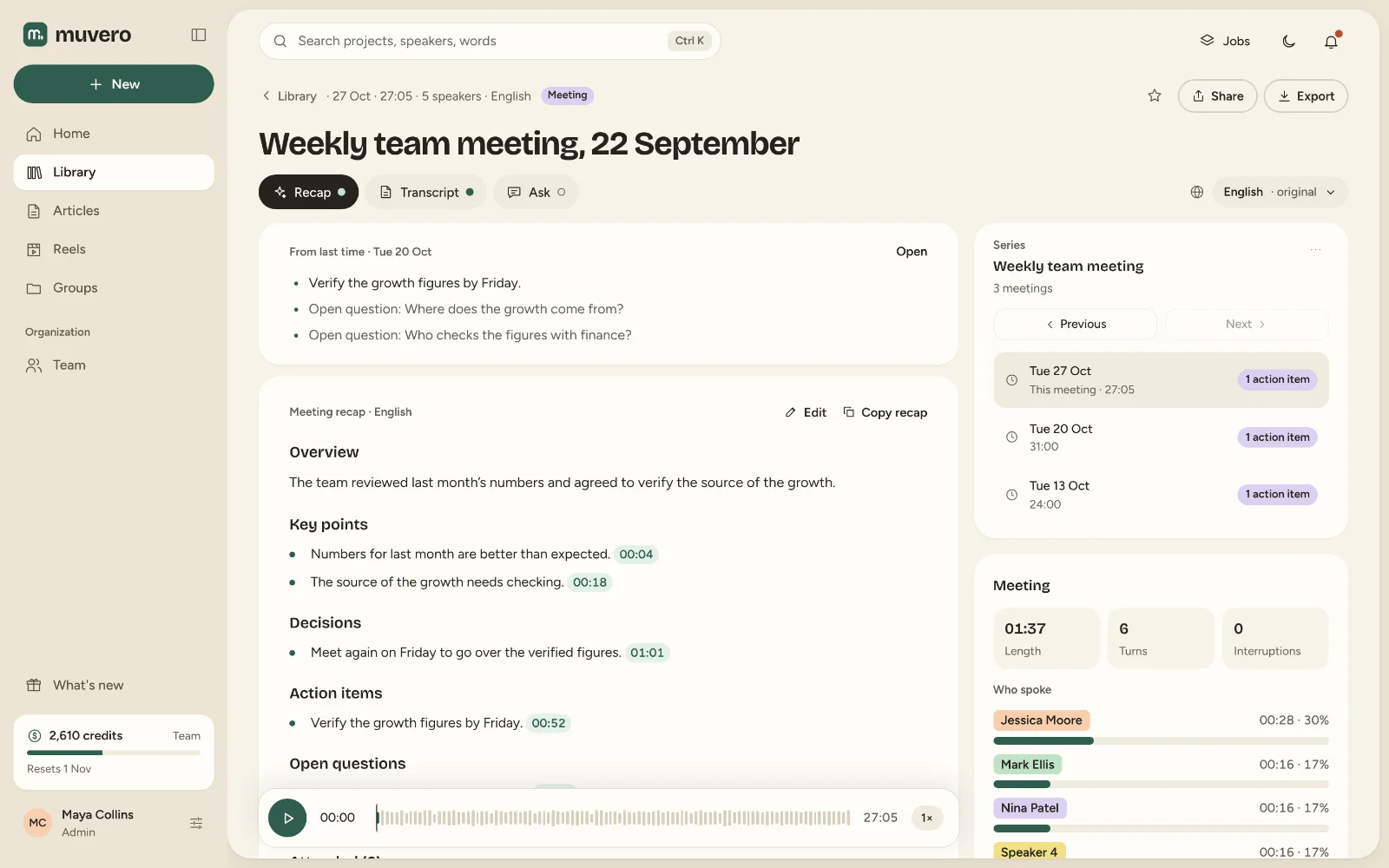
What it looks like in Muvero.
Made for the calls the browser never sees.
The apps people actually use
Zoom, Microsoft Teams, Webex and GoTo Meeting, plus Slack huddles, Discord and WhatsApp calls if you turn them on.The call, never your screen
The app records your computer's sound and your microphone, and with Record video on (the default) the call app's own window: shared screens and cameras. Nothing joins the call, and the rest of your screen is never captured.Your voice under your name
Your microphone is recorded on its own channel, so your words are named after you; the others are Speaker 1, 2… until you rename them.Nothing lost
The recording is saved on your computer every 10 seconds. If the app or the computer stops mid-call, it is sent the next time Muvero starts.
Install it and record a call
Muvero for desktop records the calls you take in desktop apps: Zoom, Microsoft Teams, Webex and GoTo Meeting, and if you turn them on, Slack huddles, Discord and WhatsApp calls. When a call starts, a small window slides in at the edge of your screen and asks Record?. When the call ends, the recording goes to Muvero: the transcript, your own voice under your name, and the meeting recap, by email if you want it.
No bot joins your call. The app records your computer’s sound and your microphone, and with Record video on (the default) the call app’s own window: shared screens and cameras. The rest of your screen is never recorded.
What you need
- Windows 10 or 11, or a Mac with macOS 14.2 or later. The app is in beta: its installers aren’t signed yet, so Windows and macOS ask you once to confirm that you want to open it (the steps below).
- A Muvero account. The app works on every plan and spends the same credits as any recording.
Install
On Windows
- In Muvero, open Settings → Apps, choose Windows and Download for Windows.
- Open the downloaded file. If Windows says it protected your PC, choose More info, then Run anyway. Muvero installs for your user and opens.
On a Mac
- In Muvero, open Settings → Apps, choose Mac and Download for Mac.
- Open the downloaded file and drag Muvero into Applications.
- Open Muvero from Applications. If the Mac blocks it, go to System Settings → Privacy & Security and choose Open Anyway.
- If the Mac says Muvero is damaged, open Terminal, run this command and open Muvero again:
xattr -dr com.apple.quarantine /Applications/Muvero.app - When asked, allow the microphone and Screen & System Audio Recording, so Muvero can hear the call and, with Record video on, record its window.
Then, on both
- Sign in with your Muvero email and password, or with Google (your browser opens to finish).
- Choose your recording settings once: the language spoken, the recap’s language, Standard or Advanced, and whether the recap comes by email. You can change them any time in Settings.
Muvero starts with your computer and waits in the notification area (the menu bar on a Mac). You can turn that off in Settings.
Record a call
- Start or join a call in Zoom, Teams or another app that is turned on in Settings.
- The Muvero window at the edge of the screen offers to record. Choose Record, confirm that everyone in the call knows it is being recorded, and choose Start recording. You can copy a note for the call’s chat from the same step.
- While it records, the window folds into a small pill: the time, the sound levels, your microphone’s mute, pause and stop. Click the time for details. Drag the pill up or down the screen’s edge to move it.
- When the call ends, Muvero counts down 15 seconds, with Keep recording if you’re not done, then stops and sends the recording. Open in Muvero takes you to it.
Not this call? Choose Not this one and Muvero stays quiet until that app’s next call.
For a call the app didn’t notice, a talk or a podcast, open Muvero from the notification area and choose Record now.
Good to know
- Who said what. Your own voice is recorded on its own channel and named after you. The others are Speaker 1, 2… until you rename them in Muvero; the app can’t read names from the call app.
- Headphones help. Without them, your microphone also hears the call from your speakers.
- Nothing is lost. The recording is saved on your computer every 10 seconds. If the app or the computer stops mid-call, what was recorded is sent the next time Muvero starts. An upload that was cut off continues where it stopped.
- Long silences. After 10 minutes without any sound the recording stops by itself.
- Updates download in the background. Restart Muvero when it says an update is ready.
- Browsers. Calls in a browser are left to the Chrome extension, so the two never offer the same call twice. You can turn browsers on in Settings.
Everyone should know
Recording people without telling them may be against the law where you or they are. Muvero asks you to confirm, every time, that everyone in the call knows it is being recorded.
Asked often. Answered here.
Which computers does it run on?
Windows 10 and 11, and Macs with macOS 14.2 or later. The app is in beta: its installers aren't signed yet, so Windows and macOS ask you once to confirm you want to open it.
Does it record my screen?
Only the call app's own window, and only with Record video on (the default; turn it off in the app's settings to record sound alone). The rest of your screen and your other windows are never recorded.
Where do I download it?
In Muvero, open Settings → Apps, find Muvero for desktop and choose Download for Windows or Download for Mac. The steps for both are below.
Does it work on my plan?
Yes, on every plan, Free included. It spends the same credits as any recording: 1 credit per minute on Standard, plus 5 credits per hour for the recap.
What about calls in the browser?
Those are left to the Chrome extension, so the two never offer the same call twice. You can turn browsers on in the app's Settings.
Does it know the other speakers' names?
Not from the call app, which doesn't share them. Your own voice is named after you; rename the others once in Muvero and the names are used throughout the project.